Table des matières
HDF - Installation des hôtes
Veillez à ce que vos machines, une fois le système installé et correctement enregistrés avec Free-IPA, à ce qu'elles aient toutes les mises à jour.
Recommandations
Pour une installation d'HDF, plusieurs recommandations sont à appliquer, certaines sont obligatoires pour le bon fonctionnement du service.
Swap
Il est fortement recommandé de désactiver la Swap, pour cela taper:
[root@hdf-ha01 ~]# swapoff -a
[root@hdf-ha01 ~]#
Afin d'éviter lors d'un reboot que la swap reviennent, vous pouvez soit supprimer la ligne dans le fichier /etc/fstab soit commenter la ligne:
[root@hdf-ha01 ~]# grep swap /etc/fstab
#/dev/mapper/centos-swap swap                    swap    defaults        0 0
[root@hdf-ha01 ~]#
Transparent HugePages
Les THP (Transparent HugePages) doivent être impérativement désactivés.
Pour les désactiver à chaud, faites:
[root@hdf-ha01 ~]# echo never > /sys/kernel/mm/transparent_hugepage/enabled
[root@hdf-ha01 ~]# echo never > /sys/kernel/mm/transparent_hugepage/defrag
Vous pouvez contrôler la prise en comptes des commandes en faisant:
[root@hdf-ha01 ~]# cat /sys/kernel/mm/transparent_hugepage/enabled
always madvise [never]
[root@hdf-ha01 ~]# cat /sys/kernel/mm/transparent_hugepage/defrag
always madvise [never]
Pour éviter la réactivation lors d'un reboot de la machine, il faudra modifier les options de boot de Grub2 pour que l'option soient désactivés, pour cela modifier le fichier /etc/default/grub et rajouter “ transparent_hugepage=never” a la ligne commencant par “GRUB_CMDLINE_LINUX=”.
[root@hdf-ha01 ~]# grep "GRUB_CMDLINE_LINUX=" /etc/default/grub
GRUB_CMDLINE_LINUX="audit=1 crashkernel=auto rd.lvm.lv=vgroot/root rd.lvm.lv=vgroot/swap rhgb quiet transparent_hugepage=never"
Pour valider la modification de Grub2, faites:
[root@hdf-ha01 ~]# /usr/sbin/grub2-mkconfig -o /boot/grub2/grub.cfg
Tuning
Pour optimiser les performances du cluster, il est recommandé de setter ces valeurs sysctl dans le système. Créer un fichier /etc/sysctl.d/hadoop.conf et placer y le contenu suivant:
[root@hdf-ha01 ~]# cat /etc/sysctl.d/hadoop.conf
kernel.pid_max=4194303
vm.swapiness=0
vm.dirty_background_ratio=20
vm.dirty_ratio=50
Reboot
Une fois toutes ces recommandations appliqués, il est recommandé de faire un reboot de toutes vos machines et de valider que toutes les options sont bien en place une fois rebootés.
Installation
Le cluster peux s'installer et fonctionner via différentes façons:
- Echange de clé SSH (utilisateur root) entre les différentes machines, Ambari Server peux donc avoir accès a l'ensemble des machines sans passer par un agent.
- Par un agent Ambari, qui lancé en tant que root peux lancer les tâches d'administration données par Ambari Server.
- Par un agent Ambari, lancé via un utilisateur applicatif avec des droits sudo, qui pourra lancer les différentes tâches d'administration d'Ambari Server.
Le choix a été fait de faire l'installation d'agents Ambari et lancé par l'utilisateur root.
Ambari Server et certains composants de l'infra ont besoin d'une base de données pour leurs fonctionnements interne, Ambari Server intègre par défaut un Postgresql version 9.2. Le service SAM intégrer dans HDF a besoin au minimum d'une version 9.6 de Postgresql, c'est pour cela que nous ferons une installation a part et que nous n'utiliserons pas le Postgresql embarqué par Ambari Server.
Installation de Postgresql 9.6
Nous installerons Postgresql sur le noeud dédié a Ambari Server et aux autres composants de l'infrastructure.
Pour cela, il faut activer le repository des Software Collections où assurez-vous que celui-ci est bien configuré sur votre système.
Note:
Le client Postgresql devra être également installé sur les autres noeuds, il faudra donc activer le repository sur l'ensemble des machines.
[root@hdf-ha01 ~]# cat /etc/yum.repos.d/CentOS-SCLo-scl-rh.repo
# CentOS-SCLo-rh.repo
#
# Please see http://wiki.centos.org/SpecialInterestGroup/SCLo for more
# information

[centos-sclo-rh]
name=CentOS-7 - SCLo rh
#baseurl=http://mirror.centos.org/centos/7/sclo/$basearch/rh/
mirrorlist=http://mirrorlist.centos.org?arch=$basearch&release=7&repo=sclo-rh
gpgcheck=1
enabled=1
gpgkey=file:///etc/pki/rpm-gpg/RPM-GPG-KEY-CentOS-SIG-SCLo

[centos-sclo-rh-testing]
name=CentOS-7 - SCLo rh Testing
baseurl=http://buildlogs.centos.org/centos/7/sclo/$basearch/rh/
gpgcheck=0
enabled=0
gpgkey=file:///etc/pki/rpm-gpg/RPM-GPG-KEY-CentOS-SIG-SCLo

[centos-sclo-rh-source]
name=CentOS-7 - SCLo rh Sources
baseurl=http://vault.centos.org/centos/7/sclo/Source/rh/
gpgcheck=1
enabled=0
gpgkey=file:///etc/pki/rpm-gpg/RPM-GPG-KEY-CentOS-SIG-SCLo

[centos-sclo-rh-debuginfo]
name=CentOS-7 - SCLo rh Debuginfo
baseurl=http://debuginfo.centos.org/centos/7/sclo/$basearch/
gpgcheck=1
enabled=0
gpgkey=file:///etc/pki/rpm-gpg/RPM-GPG-KEY-CentOS-SIG-SCLo
Puis installer le package correspondant a Postgresql 9.6:
[root@hdf-ha01 ~]# yum install rh-postgresql96-postgresql-server
Modules complémentaires chargés : fastestmirror
Loading mirror speeds from cached hostfile
Résolution des dépendances
--> Lancement de la transaction de test
---> Le paquet rh-postgresql96-postgresql-server.x86_64 0:9.6.10-1.el7 sera installé
--> Traitement de la dépendance : rh-postgresql96-postgresql-libs(x86-64) = 9.6.10-1.el7 pour le paquet : rh-postgresql96-postgresql-server-9.6.10-1.el7.x86_64
--> Traitement de la dépendance : rh-postgresql96-postgresql(x86-64) = 9.6.10-1.el7 pour le paquet : rh-postgresql96-postgresql-server-9.6.10-1.el7.x86_64
--> Traitement de la dépendance : rh-postgresql96-runtime pour le paquet : rh-postgresql96-postgresql-server-9.6.10-1.el7.x86_64
--> Traitement de la dépendance : /usr/bin/scl_source pour le paquet : rh-postgresql96-postgresql-server-9.6.10-1.el7.x86_64
--> Traitement de la dépendance : libpq.so.rh-postgresql96-5()(64bit) pour le paquet : rh-postgresql96-postgresql-server-9.6.10-1.el7.x86_64
--> Lancement de la transaction de test
---> Le paquet rh-postgresql96-postgresql.x86_64 0:9.6.10-1.el7 sera installé
---> Le paquet rh-postgresql96-postgresql-libs.x86_64 0:9.6.10-1.el7 sera installé
---> Le paquet rh-postgresql96-runtime.x86_64 0:3.0-10.el7 sera installé
--> Traitement de la dépendance : policycoreutils-python pour le paquet : rh-postgresql96-runtime-3.0-10.el7.x86_64
---> Le paquet scl-utils.x86_64 0:20130529-19.el7 sera installé
--> Lancement de la transaction de test
---> Le paquet policycoreutils-python.x86_64 0:2.5-33.el7 sera installé
--> Traitement de la dépendance : setools-libs >= 3.3.8-4 pour le paquet : policycoreutils-python-2.5-33.el7.x86_64
--> Traitement de la dépendance : libsemanage-python >= 2.5-14 pour le paquet : policycoreutils-python-2.5-33.el7.x86_64
--> Traitement de la dépendance : audit-libs-python >= 2.1.3-4 pour le paquet : policycoreutils-python-2.5-33.el7.x86_64
--> Traitement de la dépendance : python-IPy pour le paquet : policycoreutils-python-2.5-33.el7.x86_64
--> Traitement de la dépendance : libqpol.so.1(VERS_1.4)(64bit) pour le paquet : policycoreutils-python-2.5-33.el7.x86_64
--> Traitement de la dépendance : libqpol.so.1(VERS_1.2)(64bit) pour le paquet : policycoreutils-python-2.5-33.el7.x86_64
--> Traitement de la dépendance : libcgroup pour le paquet : policycoreutils-python-2.5-33.el7.x86_64
--> Traitement de la dépendance : libapol.so.4(VERS_4.0)(64bit) pour le paquet : policycoreutils-python-2.5-33.el7.x86_64
--> Traitement de la dépendance : checkpolicy pour le paquet : policycoreutils-python-2.5-33.el7.x86_64
--> Traitement de la dépendance : libqpol.so.1()(64bit) pour le paquet : policycoreutils-python-2.5-33.el7.x86_64
--> Traitement de la dépendance : libapol.so.4()(64bit) pour le paquet : policycoreutils-python-2.5-33.el7.x86_64
--> Lancement de la transaction de test
---> Le paquet audit-libs-python.x86_64 0:2.8.5-4.el7 sera installé
---> Le paquet checkpolicy.x86_64 0:2.5-8.el7 sera installé
---> Le paquet libcgroup.x86_64 0:0.41-21.el7 sera installé
---> Le paquet libsemanage-python.x86_64 0:2.5-14.el7 sera installé
---> Le paquet python-IPy.noarch 0:0.75-6.el7 sera installé
---> Le paquet setools-libs.x86_64 0:3.3.8-4.el7 sera installé
--> Résolution des dépendances terminée

Dépendances résolues

...

Installé :
  rh-postgresql96-postgresql-server.x86_64 0:9.6.10-1.el7

Dépendances installées :
  audit-libs-python.x86_64 0:2.8.5-4.el7                             checkpolicy.x86_64 0:2.5-8.el7
  libcgroup.x86_64 0:0.41-21.el7                                     libsemanage-python.x86_64 0:2.5-14.el7
  policycoreutils-python.x86_64 0:2.5-33.el7                         python-IPy.noarch 0:0.75-6.el7
  rh-postgresql96-postgresql.x86_64 0:9.6.10-1.el7                   rh-postgresql96-postgresql-libs.x86_64 0:9.6.10-1.el7
  rh-postgresql96-runtime.x86_64 0:3.0-10.el7                        scl-utils.x86_64 0:20130529-19.el7
  setools-libs.x86_64 0:3.3.8-4.el7

Terminé !
[root@hdf-ha01 ~]#
[root@hdf-ha01 ~]# cat /etc/ld.so.conf.d/postgresql-9.6.conf
/opt/rh/rh-postgresql96/root/usr/lib64
[root@hdf-ha01 ~]# ldconfig
[root@hdf-ha01 ~]#
[root@hdf-ha01 ~]# cat /etc/profile.d/postgresql96.sh
# Add /opt/rh/rh-postgresql96/root/usr/bin to the path

if ! echo $PATH | grep -q /opt/rh/rh-postgresql96/root/usr/bin/ ; then
   export PATH=/opt/rh/rh-postgresql96/root/usr/bin:$PATH
fi
[root@hdf-ha01 ~]# cat /etc/tmpfiles.d/postgresql.conf
d /var/run/postgresql 0755 postgres rpc -
[root@hdf-ha01 ~]#
[root@hdf-ha01 ~]# /opt/rh/rh-postgresql96/root/usr/bin/postgresql-setup initdb
WARNING: using obsoleted argument syntax, try --help
WARNING: arguments transformed to: postgresql-setup --initdb --unit rh-postgresql96-postgresql
 * Initializing database in '/var/opt/rh/rh-postgresql96/lib/pgsql/data'
 * Initialized, logs are in /var/lib/pgsql/initdb_rh-postgresql96-postgresql.log
[root@hdf-ha01 ~]#
[root@hdf-ha01 ~]# vi /var/opt/rh/rh-postgresql96/lib/pgsql/data/postgresql.conf

listen_addresses = '*'                  # what IP address(es) to listen on;
log_filename = 'postgresql-%m.log'      # log file name pattern,
log_truncate_on_rotation = on           # If on, an existing log file with the
log_rotation_age = 14d                  # Automatic rotation of logfiles will
log_rotation_size = 10MB                # Automatic rotation of logfiles will
log_connections = on
log_error_verbosity = verbose           # terse, default, or verbose messages
log_hostname = on
[root@hdf-ha01 ~]# systemctl enable rh-postgresql96-postgresql.service
Created symlink from /etc/systemd/system/multi-user.target.wants/rh-postgresql96-postgresql.service to /usr/lib/systemd/system/rh-postgresql96-postgresql.service.
[root@hdf-ha01 ~]# systemctl start rh-postgresql96-postgresql.service
[root@hdf-ha01 ~]# su - postgres
Dernière connexion : mardi 31 décembre 2019 à 01:00:45 CET sur pts/0
-bash-4.2$ psql
psql (9.6.10)
Type "help" for help.

postgres=# ALTER USER postgres with password 'postgres';
ALTER ROLE
postgres=# \q
-bash-4.2$ logout
[root@hdf-ha01 ~]#
[root@hdf-ha01 ~]# vi /var/opt/rh/rh-postgresql96/lib/pgsql/data/pg_hba.conf
# "local" is for Unix domain socket connections only
local   all             all                                     peer
# "local" is for Unix domain socket connections only
local   all             all                                     md5
# Allow all connections from our network
host    all             all             192.168.100.0/24        md5
[root@hdf-ha01 ~]# systemctl restart rh-postgresql96-postgresql.service
Deco/reco SSH
Test:
[root@hdf-ha01 ~]# psql -U postgres
Mot de passe pour l'utilisateur postgres :
psql (9.6.10)
Saisissez « help » pour l'aide.

postgres=#
Installation du repository public
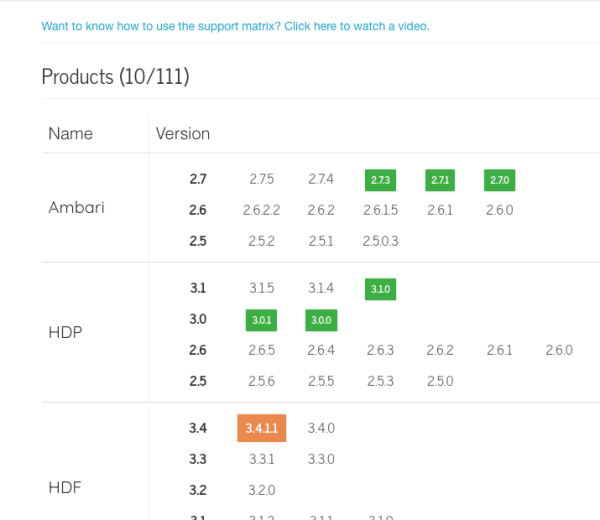
Hortonworks dispose de plusieurs repository public pour chacune des versions d'Ambari/HDF et HDP. Afin de nous assurer de la compatibilité des différentes version, il est utile de se servir la matrice de support d'Hortonworks. Vous la trouverez ici: https://supportmatrix.hortonworks.com/.
Par exemple, pour la dernière version de HDF (3.4.1.1), la version d'Ambari maximum supporté est la 2.7.3.0. On ne peux donc pas installer Ambari 2.7.4.0 (qui elle supporte la dernière version de HDP) sous peine de rencontrer des bugs et incompatibilité lors de l'installation.
Pour obtenir les liens des repository public d'HortonWorks, référez-vous a la documentation officiel pour la release souhaitée. https://docs.cloudera.com/HDPDocuments/HDF3/HDF-3.4.1.1/index.html.
Pour la version sélectionner ici, procédez comme suit sur tout les noeuds:
[root@hdf-ha01 ~]# wget http://public-repo-1.hortonworks.com/ambari/centos7/2.x/updates/2.7.3.0/ambari.repo -O /etc/yum.repos.d/Ambari-2.7.3.0.repo
--2019-12-31 01:34:10--  http://public-repo-1.hortonworks.com/ambari/centos7/2.x/updates/2.7.3.0/ambari.repo
Résolution de public-repo-1.hortonworks.com (public-repo-1.hortonworks.com)... 143.204.181.39, 143.204.181.46, 143.204.181.19, ...
Connexion vers public-repo-1.hortonworks.com (public-repo-1.hortonworks.com)|143.204.181.39|:80...connecté.
requête HTTP transmise, en attente de la réponse...200 OK
Longueur: 376 [binary/octet-stream]
Sauvegarde en : «/etc/yum.repos.d/Ambari-2.7.3.0.repo»

100%[==================================================================================================>] 376         --.-K/s   ds 0s

2019-12-31 01:34:10 (49,5 MB/s) - «/etc/yum.repos.d/Ambari-2.7.3.0.repo» sauvegardé [376/376]
Installation des agents Ambari
L'installation des agents Ambari doit se faire sur tous les noeuds, y compris le noeud dédiée a Ambari Server.
Avant de procéder a l'installation de l'agent, certains pré-requis sont nécessaires. Sur le noeud dédié a Ambari Server, nous avons déjà installé Postgresql Server, qui contient les outils en ligne de commande “client”.
Donc sur ce noeud, vous n'avez besoin d'installer que les paquets suivants:
- java-1.8.0-openjdk
- java-1.8.0-openjdk-devel
- postgresql-jdbc
Pour cela, faites:
[root@hdf-ha01 ~]# yum -y install java-1.8.0-openjdk java-1.8.0-openjdk-devel postgresql-jdbc
...
Pour les autres noeuds, il faut juste rajouter le package “rh-postgresql96-postgresql”:
[root@hdf-ha01 ~]# yum -y install java-1.8.0-openjdk java-1.8.0-openjdk-devel postgresql-jdbc rh-postgresql96-postgresql
Modules complémentaires chargés : fastestmirror
Loading mirror speeds from cached hostfile
Le paquet rh-postgresql96-postgresql-9.6.10-1.el7.x86_64 est déjà installé dans sa dernière version
Résolution des dépendances
--> Lancement de la transaction de test
---> Le paquet java-1.8.0-openjdk.x86_64 1:1.8.0.232.b09-0.el7_7 sera installé
--> Traitement de la dépendance : java-1.8.0-openjdk-headless(x86-64) = 1:1.8.0.232.b09-0.el7_7 pour le paquet : 1:java-1.8.0-openjdk-1.8.0.232.b09-0.el7_7.x86_64
--> Traitement de la dépendance : xorg-x11-fonts-Type1 pour le paquet : 1:java-1.8.0-openjdk-1.8.0.232.b09-0.el7_7.x86_64
--> Traitement de la dépendance : libjvm.so(SUNWprivate_1.1)(64bit) pour le paquet : 1:java-1.8.0-openjdk-1.8.0.232.b09-0.el7_7.x86_64
--> Traitement de la dépendance : libjpeg.so.62(LIBJPEG_6.2)(64bit) pour le paquet : 1:java-1.8.0-openjdk-1.8.0.232.b09-0.el7_7.x86_64
--> Traitement de la dépendance : libjava.so(SUNWprivate_1.1)(64bit) pour le paquet : 1:java-1.8.0-openjdk-1.8.0.232.b09-0.el7_7.x86_64
--> Traitement de la dépendance : libXcomposite(x86-64) pour le paquet : 1:java-1.8.0-openjdk-1.8.0.232.b09-0.el7_7.x86_64
--> Traitement de la dépendance : gtk2(x86-64) pour le paquet : 1:java-1.8.0-openjdk-1.8.0.232.b09-0.el7_7.x86_64
--> Traitement de la dépendance : fontconfig(x86-64) pour le paquet : 1:java-1.8.0-openjdk-1.8.0.232.b09-0.el7_7.x86_64
--> Traitement de la dépendance : libjvm.so()(64bit) pour le paquet : 1:java-1.8.0-openjdk-1.8.0.232.b09-0.el7_7.x86_64
--> Traitement de la dépendance : libjpeg.so.62()(64bit) pour le paquet : 1:java-1.8.0-openjdk-1.8.0.232.b09-0.el7_7.x86_64
--> Traitement de la dépendance : libjava.so()(64bit) pour le paquet : 1:java-1.8.0-openjdk-1.8.0.232.b09-0.el7_7.x86_64
--> Traitement de la dépendance : libgif.so.4()(64bit) pour le paquet : 1:java-1.8.0-openjdk-1.8.0.232.b09-0.el7_7.x86_64
--> Traitement de la dépendance : libXtst.so.6()(64bit) pour le paquet : 1:java-1.8.0-openjdk-1.8.0.232.b09-0.el7_7.x86_64
--> Traitement de la dépendance : libXrender.so.1()(64bit) pour le paquet : 1:java-1.8.0-openjdk-1.8.0.232.b09-0.el7_7.x86_64
--> Traitement de la dépendance : libXi.so.6()(64bit) pour le paquet : 1:java-1.8.0-openjdk-1.8.0.232.b09-0.el7_7.x86_64
--> Traitement de la dépendance : libXext.so.6()(64bit) pour le paquet : 1:java-1.8.0-openjdk-1.8.0.232.b09-0.el7_7.x86_64
--> Traitement de la dépendance : libX11.so.6()(64bit) pour le paquet : 1:java-1.8.0-openjdk-1.8.0.232.b09-0.el7_7.x86_64

...

Installé :
  java-1.8.0-openjdk.x86_64 1:1.8.0.232.b09-0.el7_7                 java-1.8.0-openjdk-devel.x86_64 1:1.8.0.232.b09-0.el7_7
  postgresql-jdbc.noarch 0:9.2.1002-6.el7_5

Dépendances installées :
  atk.x86_64 0:2.28.1-1.el7                                                  cairo.x86_64 0:1.15.12-4.el7
  copy-jdk-configs.noarch 0:3.3-10.el7_5                                     dejavu-fonts-common.noarch 0:2.33-6.el7
  dejavu-sans-fonts.noarch 0:2.33-6.el7                                      fontconfig.x86_64 0:2.13.0-4.3.el7
  fontpackages-filesystem.noarch 0:1.44-8.el7                                fribidi.x86_64 0:1.0.2-1.el7_7.1
  gdk-pixbuf2.x86_64 0:2.36.12-3.el7                                         giflib.x86_64 0:4.1.6-9.el7
  graphite2.x86_64 0:1.3.10-1.el7_3                                          gtk-update-icon-cache.x86_64 0:3.22.30-3.el7
  gtk2.x86_64 0:2.24.31-1.el7                                                harfbuzz.x86_64 0:1.7.5-2.el7
  hicolor-icon-theme.noarch 0:0.12-7.el7                                     jasper-libs.x86_64 0:1.900.1-33.el7
  java-1.8.0-openjdk-headless.x86_64 1:1.8.0.232.b09-0.el7_7                 javapackages-tools.noarch 0:3.4.1-11.el7
  jbigkit-libs.x86_64 0:2.0-11.el7                                           libICE.x86_64 0:1.0.9-9.el7
  libSM.x86_64 0:1.2.2-2.el7                                                 libX11.x86_64 0:1.6.7-2.el7
  libX11-common.noarch 0:1.6.7-2.el7                                         libXau.x86_64 0:1.0.8-2.1.el7
  libXcomposite.x86_64 0:0.4.4-4.1.el7                                       libXcursor.x86_64 0:1.1.15-1.el7
  libXdamage.x86_64 0:1.1.4-4.1.el7                                          libXext.x86_64 0:1.3.3-3.el7
  libXfixes.x86_64 0:5.0.3-1.el7                                             libXft.x86_64 0:2.3.2-2.el7
  libXi.x86_64 0:1.7.9-1.el7                                                 libXinerama.x86_64 0:1.1.3-2.1.el7
  libXrandr.x86_64 0:1.5.1-2.el7                                             libXrender.x86_64 0:0.9.10-1.el7
  libXtst.x86_64 0:1.2.3-1.el7                                               libXxf86vm.x86_64 0:1.1.4-1.el7
  libfontenc.x86_64 0:1.1.3-3.el7                                            libglvnd.x86_64 1:1.0.1-0.8.git5baa1e5.el7
  libglvnd-egl.x86_64 1:1.0.1-0.8.git5baa1e5.el7                             libglvnd-glx.x86_64 1:1.0.1-0.8.git5baa1e5.el7
  libjpeg-turbo.x86_64 0:1.2.90-8.el7                                        libthai.x86_64 0:0.1.14-9.el7
  libtiff.x86_64 0:4.0.3-32.el7                                              libwayland-client.x86_64 0:1.15.0-1.el7
  libwayland-server.x86_64 0:1.15.0-1.el7                                    libxcb.x86_64 0:1.13-1.el7
  libxshmfence.x86_64 0:1.2-1.el7                                            libxslt.x86_64 0:1.1.28-5.el7
  lksctp-tools.x86_64 0:1.0.17-2.el7                                         mesa-libEGL.x86_64 0:18.3.4-5.el7
  mesa-libGL.x86_64 0:18.3.4-5.el7                                           mesa-libgbm.x86_64 0:18.3.4-5.el7
  mesa-libglapi.x86_64 0:18.3.4-5.el7                                        pango.x86_64 0:1.42.4-4.el7_7
  pcsc-lite-libs.x86_64 0:1.8.8-8.el7                                        pixman.x86_64 0:0.34.0-1.el7
  python-javapackages.noarch 0:3.4.1-11.el7                                  python-lxml.x86_64 0:3.2.1-4.el7
  ttmkfdir.x86_64 0:3.0.9-42.el7                                             tzdata-java.noarch 0:2019c-1.el7
  xorg-x11-font-utils.x86_64 1:7.5-21.el7                                    xorg-x11-fonts-Type1.noarch 0:7.5-9.el7

Terminé !
Sur le noeud dédié a Ambari Server, la configuration de Postgresql a déjà été réalisé, pour les autres, procédez de la façon suivante pour la configuration des librairies et du profile:
[root@hdf-ha01 ~]# cat /etc/ld.so.conf.d/postgresql-9.6.conf
/opt/rh/rh-postgresql96/root/usr/lib64
[root@hdf-ha01 ~]# ldconfig
[root@hdf-ha01 ~]# cat /etc/profile.d/postgresql96.sh
# Add /opt/rh/rh-postgresql96/root/usr/bin to the path

if ! echo $PATH | grep -q /opt/rh/rh-postgresql96/root/usr/bin/ ; then
   export PATH=$PATH:/opt/rh/rh-postgresql96/root/usr/bin
fi
Il ne reste plus qu'a installer le package d'Ambari Agent, pour cela faites:
[root@hdf-ha01 ~]# yum -y install ambari-agent
Modules complémentaires chargés : fastestmirror
Loading mirror speeds from cached hostfile
Résolution des dépendances
--> Lancement de la transaction de test
---> Le paquet ambari-agent.x86_64 0:2.7.3.0-139 sera installé
--> Résolution des dépendances terminée

Dépendances résolues

============================================================================================================================================
 Package                           Architecture                Version                            Dépôt                               Taille
============================================================================================================================================
Installation :
 ambari-agent                      x86_64                      2.7.3.0-139                        Ambari-2.7.3.0                       36 M

Résumé de la transaction
============================================================================================================================================
Installation   1 Paquet

Taille totale des téléchargements : 36 M
Taille d'installation : 68 M
Downloading packages:
attention : /var/cache/yum/x86_64/7/Ambari-2.7.3.0/packages/ambari-agent-2.7.3.0-139.x86_64.rpm: Entête V4 RSA/SHA1 Signature, clé ID 07513cad: NOKEY
La clé publique pour ambari-agent-2.7.3.0-139.x86_64.rpm n'est pas installée
ambari-agent-2.7.3.0-139.x86_64.rpm                                                                                  |  36 MB  00:00:01
Récupération de la clé à partir de file:///etc/pki/rpm-gpg/RPM-GPG-KEY-Jenkins
Importation de la clef GPG 0x07513CAD :
ID utilisateur : « Jenkins (HDP Builds) <jenkin@hortonworks.com> »
Empreinte      : df52 ed4f 7a3a 5882 c099 4c66 b973 3a7a 0751 3cad
Provient de    : /etc/pki/rpm-gpg/RPM-GPG-KEY-Jenkins
Running transaction check
Running transaction test
Transaction test succeeded
Running transaction
  Installation : ambari-agent-2.7.3.0-139.x86_64                                                                                        1/1
  Vérification : ambari-agent-2.7.3.0-139.x86_64                                                                                        1/1

Installé :
  ambari-agent.x86_64 0:2.7.3.0-139

Terminé !
Avant de lancer les agents, il faut configurer le nom de la machine ou se trouve Ambari Server, pour cela éditez le fichier de configuration “/etc/ambari-agent/conf/ambari-agent.ini” et modifier la ligne:
[server]
hostname=localhost
Par la ligne suivante (dans notre cas, Ambari Server se trouve dans hdf-ha01.oowy.fr):
[server]
hostname=hdf-ha01.oowy.fr
Maintenant activez le démarrage du service lors du boot de la machine et démarrer Ambari Agent sur l'ensemble de vos noeuds:
[root@hdf-ha01 ~]# systemctl enable ambari-agent.service
ambari-agent.service is not a native service, redirecting to /sbin/chkconfig.
Executing /sbin/chkconfig ambari-agent on
[root@hdf-ha01 ~]# systemctl start ambari-agent.service
[root@hdf-ha01 ~]# systemctl status ambari-agent.service
● ambari-agent.service - LSB: ambari-agent daemon
   Loaded: loaded (/etc/rc.d/init.d/ambari-agent; bad; vendor preset: disabled)
   Active: active (running) since mar. 2019-12-31 01:54:27 CET; 5s ago
     Docs: man:systemd-sysv-generator(8)
  Process: 10479 ExecStart=/etc/rc.d/init.d/ambari-agent start (code=exited, status=0/SUCCESS)
   CGroup: /system.slice/ambari-agent.service
           ├─10538 /usr/bin/python /usr/lib/ambari-agent/lib/ambari_agent/AmbariAgent.py start
           └─10542 /usr/bin/python /usr/lib/ambari-agent/lib/ambari_agent/main.py start

déc. 31 01:54:25 hdf-ha01 ambari-agent[10479]: Checking ambari-common dir...
déc. 31 01:54:25 hdf-ha01 ambari-agent[10479]: Starting ambari-agent
déc. 31 01:54:27 hdf-ha01 ambari-agent[10479]: Verifying ambari-agent process status...
déc. 31 01:54:27 hdf-ha01 ambari-agent[10479]: tput: No value for $TERM and no -T specified
déc. 31 01:54:27 hdf-ha01 ambari-agent[10479]: Ambari Agent successfully started
déc. 31 01:54:27 hdf-ha01 ambari-agent[10479]: tput: No value for $TERM and no -T specified
déc. 31 01:54:27 hdf-ha01 ambari-agent[10479]: Agent PID at: /run/ambari-agent/ambari-agent.pid
déc. 31 01:54:27 hdf-ha01 ambari-agent[10479]: Agent out at: /var/log/ambari-agent/ambari-agent.out
déc. 31 01:54:27 hdf-ha01 ambari-agent[10479]: Agent log at: /var/log/ambari-agent/ambari-agent.log
déc. 31 01:54:27 hdf-ha01 systemd[1]: Started LSB: ambari-agent daemon.
Installation d'Ambari Server
Sur le noeud dédié a Ambari Server, installer le package ambari-server:
[root@hdf-ha01 ~]# yum -y install ambari-server
Modules complémentaires chargés : fastestmirror
Loading mirror speeds from cached hostfile
Résolution des dépendances
--> Lancement de la transaction de test
---> Le paquet ambari-server.x86_64 0:2.7.3.0-139 sera installé
--> Traitement de la dépendance : postgresql-server >= 8.1 pour le paquet : ambari-server-2.7.3.0-139.x86_64
--> Lancement de la transaction de test
---> Le paquet postgresql-server.x86_64 0:9.2.24-1.el7_5 sera installé
--> Traitement de la dépendance : postgresql-libs(x86-64) = 9.2.24-1.el7_5 pour le paquet : postgresql-server-9.2.24-1.el7_5.x86_64
--> Traitement de la dépendance : postgresql(x86-64) = 9.2.24-1.el7_5 pour le paquet : postgresql-server-9.2.24-1.el7_5.x86_64
--> Traitement de la dépendance : libpq.so.5()(64bit) pour le paquet : postgresql-server-9.2.24-1.el7_5.x86_64
--> Lancement de la transaction de test
---> Le paquet postgresql.x86_64 0:9.2.24-1.el7_5 sera installé
---> Le paquet postgresql-libs.x86_64 0:9.2.24-1.el7_5 sera installé
--> Résolution des dépendances terminée

...

Installé :
  ambari-server.x86_64 0:2.7.3.0-139

Dépendances installées :
  postgresql.x86_64 0:9.2.24-1.el7_5        postgresql-libs.x86_64 0:9.2.24-1.el7_5        postgresql-server.x86_64 0:9.2.24-1.el7_5

Terminé !
Installation de la base Ambari
Connectez vous a la base de données Postgresql Server afin d'initialiser le compte qui va servir pour Ambari ainsi que la création de la base de données qui lui sera dédiée.
Pour cela, procédez de la manière suivante:
[root@hdf-ha01 ~]# psql -U postgres
Mot de passe pour l`utilisateur postgres :
psql (9.6.10)
Saisissez « help » pour l`aide.

postgres=# BEGIN;
BEGIN
postgres=# SET LOCAL log_statement = 'none';
SET
postgres=# CREATE USER ambari WITH PASSWORD 'ambari' CREATEDB;
CREATE ROLE
postgres=# COMMIT;
COMMIT
postgres=# CREATE DATABASE ambari;
CREATE DATABASE
postgres=# GRANT ALL PRIVILEGES ON DATABASE ambari TO ambari;
GRANT
postgres=# \connect ambari;
Vous êtes maintenant connecté à la base de données « ambari » en tant qu`utilisateur « postgres ».
ambari=# CREATE SCHEMA ambari AUTHORIZATION ambari;
CREATE SCHEMA
ambari=# ALTER SCHEMA ambari OWNER TO ambari;
ALTER SCHEMA
ambari=# ALTER ROLE ambari SET search_path to 'ambari', 'public';
ALTER ROLE
ambari=# \q
[root@hdf-ha01 ~]#
A Savoir:
Explication de chaque statement a faire…
Configuration et démarrage d'Ambari Server
Ambari Server doit être configuré avec les drivers de Postgresql et le jdbc correspondant, pour cela, faites:
[root@hdf-ha01 ~]# ambari-server setup --jdbc-db=postgres --jdbc-driver=/usr/share/java/postgresql-jdbc.jar
Using python  /usr/bin/python
Setup ambari-server
Copying /usr/share/java/postgresql-jdbc.jar to /var/lib/ambari-server/resources/postgresql-jdbc.jar
If you are updating existing jdbc driver jar for postgres with postgresql-jdbc.jar. Please remove the old driver jar, from all hosts. Restarting services that need the driver, will automatically copy the new jar to the hosts.
JDBC driver was successfully initialized.
Ambari Server 'setup' completed successfully.
[root@hdf-ha01 ~]#
Nous pouvons désormais commencer la configuration d'Ambari Server, lancer l'installation et répondez aux questions posés:
[root@hdf-ha01 ~]# ambari-server setup
Using python  /usr/bin/python
Setup ambari-server
Checking SELinux...
SELinux status is 'disabled'
Ici, on nous demande si l'on souhaite configurer Ambari Server pour être lancer avec un autre utilisateur que 'root', répondez oui et renseigner le compte que l'on a réservé pour Ambari, ici “hdf-ambari”:
Customize user account for ambari-server daemon [y/n] (n)? y
Enter user account for ambari-server daemon (root):hdf-ambari
Adjusting ambari-server permissions and ownership...
Checking firewall status...
Checking JDK...
[1] Oracle JDK 1.8 + Java Cryptography Extension (JCE) Policy Files 8
[2] Custom JDK
==============================================================================
Enter choice (1):
Ici, nous avons déjà fait le choix d'installer Java 8 OpenJDK, répondez '2' pour “Custom JDK” et donner le chemin d'accès complet a Java:
Enter choice (1): 2
WARNING: JDK must be installed on all hosts and JAVA_HOME must be valid on all hosts.
WARNING: JCE Policy files are required for configuring Kerberos security. If you plan to use Kerberos,please make sure JCE Unlimited Strength Jurisdiction Policy Files are valid on all hosts.
Path to JAVA_HOME: /usr/lib/jvm/java
Validating JDK on Ambari Server...done.
Check JDK version for Ambari Server...
JDK version found: 8
Minimum JDK version is 8 for Ambari. Skipping to setup different JDK for Ambari Server.
Checking GPL software agreement...
GPL License for LZO: https://www.gnu.org/licenses/old-licenses/gpl-2.0.en.html
Enable Ambari Server to download and install GPL Licensed LZO packages [y/n] (n)?
Ici, nous laisserons la valeur par défaut 'n' pour non:
Completing setup...
Configuring database...
Enter advanced database configuration [y/n] (n)? y
Ici, nous devons entrez dans la configuration avancé de la base de données a utiliser, du fait que nous n'avons pas utilisé la version embarquée, nous devons fournir les informations de connexions a Postgresql
Sélectionnez le choix '4' pour notre Postgresql:
Configuring database...
==============================================================================
Choose one of the following options:
[1] - PostgreSQL (Embedded)
[2] - Oracle
[3] - MySQL / MariaDB
[4] - PostgreSQL
[5] - Microsoft SQL Server (Tech Preview)
[6] - SQL Anywhere
[7] - BDB
==============================================================================
Enter choice (1): 4
Puis renseigner toutes les informations demandés:
Hostname (localhost): hdf-ha01.oowy.fr
Port (5432):
Database name (ambari):
Postgres schema (ambari):
Username (ambari):
Enter Database Password (bigdata):   <<<--- Ici, le mot de passe par défaut est bigdata, mais nous en avions défini 'ambari'
Re-enter password:                   <<<--- Retapez le mot de passe
Configuring ambari database...
Configuring remote database connection properties...
WARNING: Before starting Ambari Server, you must run the following DDL directly from the database shell to create the schema: /var/lib/ambari-server/resources/Ambari-DDL-Postgres-CREATE.sql
Proceed with configuring remote database connection properties [y/n] (y)? y
Valider le changement de la configuration pour finir.
Extracting system views...
ambari-admin-2.7.3.0.139.jar
....
Ambari repo file doesn't contain latest json url, skipping repoinfos modification
Adjusting ambari-server permissions and ownership...
Ambari Server 'setup' completed successfully.
Comme indiqué plus haut, il faut exécuter une séquence de requête SQL dans Postgres pour la mise en place du schéma d'Ambari, pour cela il faut se connecter a la base 'ambari' et injecter le fichier SQL suivant “/var/lib/ambari-server/resources/Ambari-DDL-Postgres-CREATE.sql”.
Procéder de la manière suivante:
[root@hdf-ha01 ~]# psql -U ambari ambari < /var/lib/ambari-server/resources/Ambari-DDL-Postgres-CREATE.sql
Mot de passe pour l'utilisateur ambari :
CREATE TABLE
CREATE TABLE
CREATE TABLE

...

CREATE INDEX
CREATE INDEX
CREATE INDEX
[root@hdf-ha01 ~]#
Le schéma en place, nous pouvons désormais activer le service “ambari-server” au démarrage du système et le démarrer:
[root@hdf-ha01 ~]# systemctl enable ambari-server
ambari-server.service is not a native service, redirecting to /sbin/chkconfig.
Executing /sbin/chkconfig ambari-server on
[root@hdf-ha01 ~]#
[root@hdf-ha01 ~]# systemctl start ambari-server
[root@hdf-ha01 ~]#
[root@hdf-ha01 ~]# systemctl status ambari-server
● ambari-server.service - LSB: ambari-server daemon
   Loaded: loaded (/etc/rc.d/init.d/ambari-server; bad; vendor preset: disabled)
   Active: active (exited) since mar. 2019-12-31 02:27:07 CET; 26s ago
     Docs: man:systemd-sysv-generator(8)
  Process: 11046 ExecStart=/etc/rc.d/init.d/ambari-server start (code=exited, status=0/SUCCESS)

déc. 31 02:26:44 hdf-ha01 ambari-server[11046]: Ambari database consistency check started...
déc. 31 02:26:44 hdf-ha01 ambari-server[11046]: Server PID at: /var/run/ambari-server/ambari-server.pid
déc. 31 02:26:44 hdf-ha01 ambari-server[11046]: Server out at: /var/log/ambari-server/ambari-server.out
déc. 31 02:26:44 hdf-ha01 ambari-server[11046]: Server log at: /var/log/ambari-server/ambari-server.log
déc. 31 02:26:44 hdf-ha01 su[11069]: (to hdf-ambari) root on none
déc. 31 02:27:07 hdf-ha01 ambari-server[11046]: Waiting for server start..........................
déc. 31 02:27:07 hdf-ha01 ambari-server[11046]: Server started listening on 8080
déc. 31 02:27:07 hdf-ha01 ambari-server[11046]: DB configs consistency check: no errors and warnings were found.
déc. 31 02:27:07 hdf-ha01 ambari-server[11046]: Ambari Server 'start' completed successfully.
déc. 31 02:27:07 hdf-ha01 systemd[1]: Started LSB: ambari-server daemon.
[root@hdf-ha01 ~]#
Il nous faut désormais télécharger le Mpack d'HDF, afin de bénéficier de la définition des dernières versions du produit, pour cela télécharger sur “hdf-ha01” le fichier se trouvant ici.
Note:
Vous retrouverez les liens de tous les fichiers/repository des versions dans la documentation officiel (Release notes → HDF Repository Locations).
Procédez comme suit pour télécharger le Mpack:
[root@hdf-ha01 ~]# wget http://public-repo-1.hortonworks.com/HDF/centos7/3.x/updates/3.4.1.1/tars/hdf_ambari_mp/hdf-ambari-mpack-3.4.1.1-4.tar.gz
--2019-12-31 02:41:25--  http://public-repo-1.hortonworks.com/HDF/centos7/3.x/updates/3.4.1.1/tars/hdf_ambari_mp/hdf-ambari-mpack-3.4.1.1-4.tar.gz
Résolution de public-repo-1.hortonworks.com (public-repo-1.hortonworks.com)... 13.224.227.114, 13.224.227.15, 13.224.227.32, ...
Connexion vers public-repo-1.hortonworks.com (public-repo-1.hortonworks.com)|13.224.227.114|:80...connecté.
requête HTTP transmise, en attente de la réponse...200 OK
Longueur: 100087568 (95M) [application/x-tar]
Sauvegarde en : «hdf-ambari-mpack-3.4.1.1-4.tar.gz»

100%[==================================================================================================>] 100 087 568 1010KB/s   ds 98s

2019-12-31 02:43:04 (993 KB/s) - «hdf-ambari-mpack-3.4.1.1-4.tar.gz» sauvegardé [100087568/100087568]
Pour l'installer, faites:
Note:
Rajouter “–purge” a la fin de la commande si vous souhaitez purger toutes les définitons 'obsolétes' présent dans l'installation de base d'Ambari pour ne garder que la partie HDF. Auquel cas, vous aurez également les fichiers de définitions de HDP.
[root@hdf-ha01 ~]# ambari-server install-mpack --mpack=/root/hdf-ambari-mpack-3.4.1.1-4.tar.gz
Using python  /usr/bin/python
Installing management pack
2019-12-31 02:44:19,359 - Execute[('tar', '-xf', '/var/lib/ambari-server/data/tmp/hdf-ambari-mpack-3.4.1.1-4.tar.gz', '-C', '/var/lib/ambari-server/data/tmp/')] {'tries': 3, 'sudo': True, 'try_sleep': 1}
Ambari Server 'install-mpack' completed successfully.
Une fois le Mpack installé, vous pouvez supprimer le fichier télécharger.
Redémarrer Ambari-Server pour prendre en compte le changement de configuration:
[root@hdf-ha01 ~]# systemctl restart ambari-server
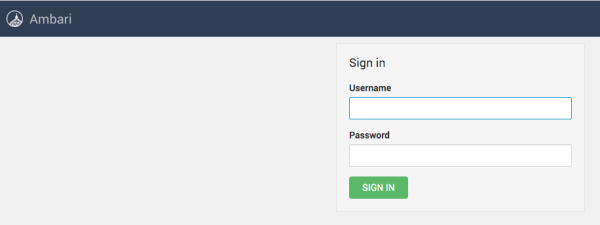
Vous pouvez désormais vous connecter a l'url http://hdf-ha01.oowy.fr:8080/
Note:
Par défaut, l'utilisateur est: admin
Le mot de passe est: admin